> ## Documentation Index
> Fetch the complete documentation index at: https://docs-v1.latitude.so/llms.txt
> Use this file to discover all available pages before exploring further.
# Editor
> Learn the basics of writing and managing prompts in the Latitude editor.
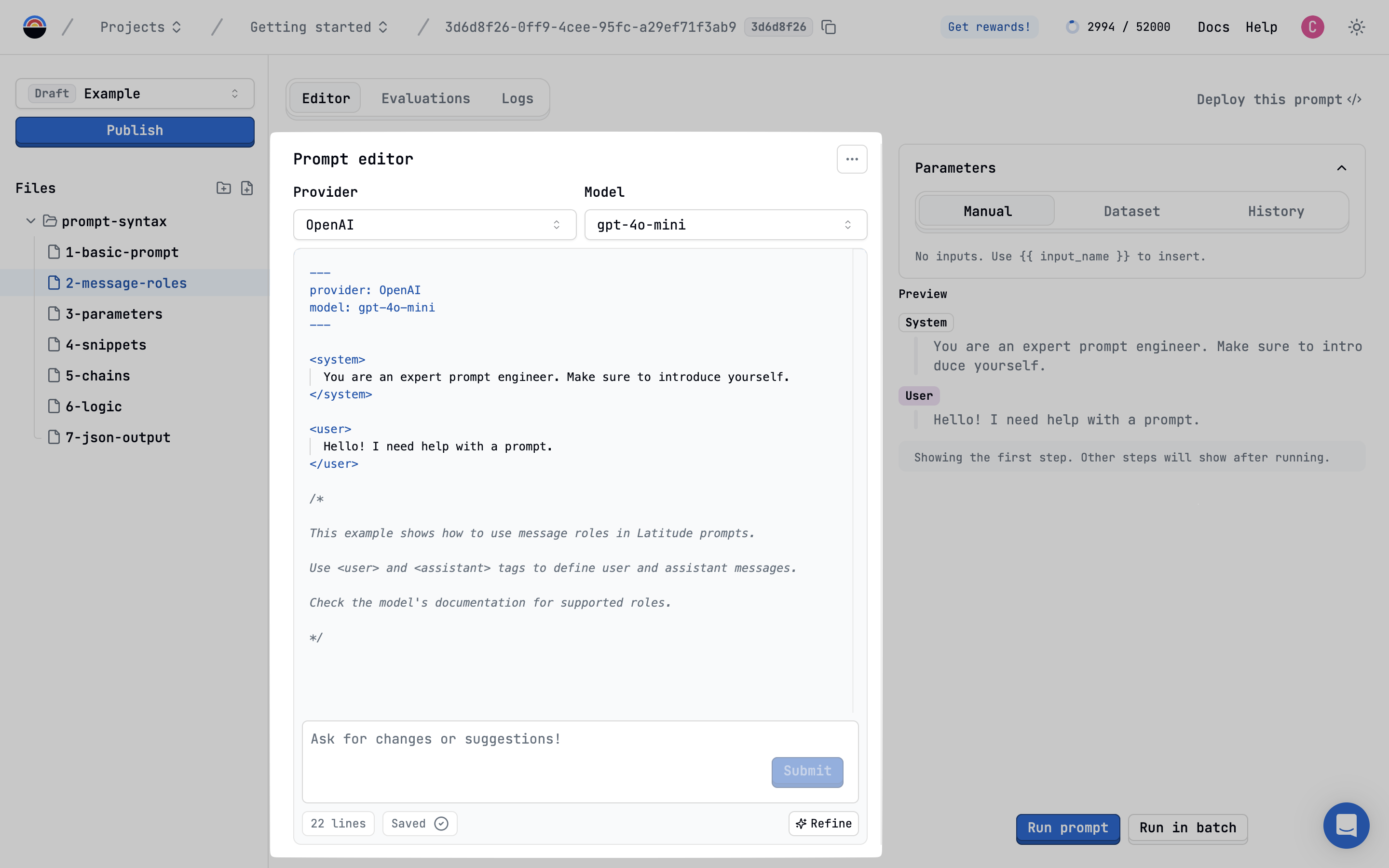
The Latitude Prompt Editor is your central hub for designing, testing, and managing AI prompts. It provides a powerful interface built around **PromptL**, our specialized language for creating dynamic and structured prompts.
 ## Writing a Prompt using PromptL
At its core, the editor lets you write prompts using [PromptL syntax](/promptl/syntax/structure). This includes:
* **Configuration Block**: Define provider, model, and settings in the YAML frontmatter.
* **Messages**: Structure conversations using ``, ``, and `` tags.
* **Advanced Features**: Utilize loops, conditionals, snippets, and more for complex logic.
```markdown theme={null}
---
provider: openai
model: gpt-4o
temperature: 0.7
---
You are a helpful assistant.
Tell me a joke about {{ topic }}.
```
Explore the full power of PromptL in the [PromptL Syntax documentation](/promptl/syntax/structure).
## Adding Parameters and Variables
Make your prompts dynamic by using variables and parameters:
Define placeholders like `{{ topic }}` in your prompt. You can use, read, and write data from these variables all over your prompt.
All variables defined in the prompt without a value are automatically added as **Input Parameters**, which can be filled in via the
Playground or API calls.
Learn more about [Variables in PromptL](/promptl/syntax/variables).
Input parameters will automatically appear in the [Playground](/guides/prompt-manager/playground) for easy testing.
## Collaborating in the Editor
Latitude is built for teamwork:
* **Version Control**: Manage changes using drafts and published versions. See the [Version Control guide](/guides/prompt-manager/version-control) for details.
* **Shared Workspace**: Team members can view and edit prompts within the same project.
* **Comments**: Add `/* comments */` directly within the editor for feedback and discussion.
## Next Steps
* Learn how to [Configure Prompt Settings](/guides/prompt-manager/configuration)
* Test your prompts in the [Playground](/guides/prompt-manager/playground)
* Manage changes with [Version Control](/guides/prompt-manager/version-control)
## Writing a Prompt using PromptL
At its core, the editor lets you write prompts using [PromptL syntax](/promptl/syntax/structure). This includes:
* **Configuration Block**: Define provider, model, and settings in the YAML frontmatter.
* **Messages**: Structure conversations using ``, ``, and `` tags.
* **Advanced Features**: Utilize loops, conditionals, snippets, and more for complex logic.
```markdown theme={null}
---
provider: openai
model: gpt-4o
temperature: 0.7
---
You are a helpful assistant.
Tell me a joke about {{ topic }}.
```
Explore the full power of PromptL in the [PromptL Syntax documentation](/promptl/syntax/structure).
## Adding Parameters and Variables
Make your prompts dynamic by using variables and parameters:
Define placeholders like `{{ topic }}` in your prompt. You can use, read, and write data from these variables all over your prompt.
All variables defined in the prompt without a value are automatically added as **Input Parameters**, which can be filled in via the
Playground or API calls.
Learn more about [Variables in PromptL](/promptl/syntax/variables).
Input parameters will automatically appear in the [Playground](/guides/prompt-manager/playground) for easy testing.
## Collaborating in the Editor
Latitude is built for teamwork:
* **Version Control**: Manage changes using drafts and published versions. See the [Version Control guide](/guides/prompt-manager/version-control) for details.
* **Shared Workspace**: Team members can view and edit prompts within the same project.
* **Comments**: Add `/* comments */` directly within the editor for feedback and discussion.
## Next Steps
* Learn how to [Configure Prompt Settings](/guides/prompt-manager/configuration)
* Test your prompts in the [Playground](/guides/prompt-manager/playground)
* Manage changes with [Version Control](/guides/prompt-manager/version-control)