> ## Documentation Index
> Fetch the complete documentation index at: https://docs-v1.latitude.so/llms.txt
> Use this file to discover all available pages before exploring further.
# Configuration
> Learn how to configure model, provider, and generation parameters for your prompts.
The configuration section, located at the top of every prompt file and enclosed by triple dashes (`---`), defines how Latitude executes your prompt. It's written in YAML format and allows you to specify the AI provider, model, generation parameters, and other advanced settings.
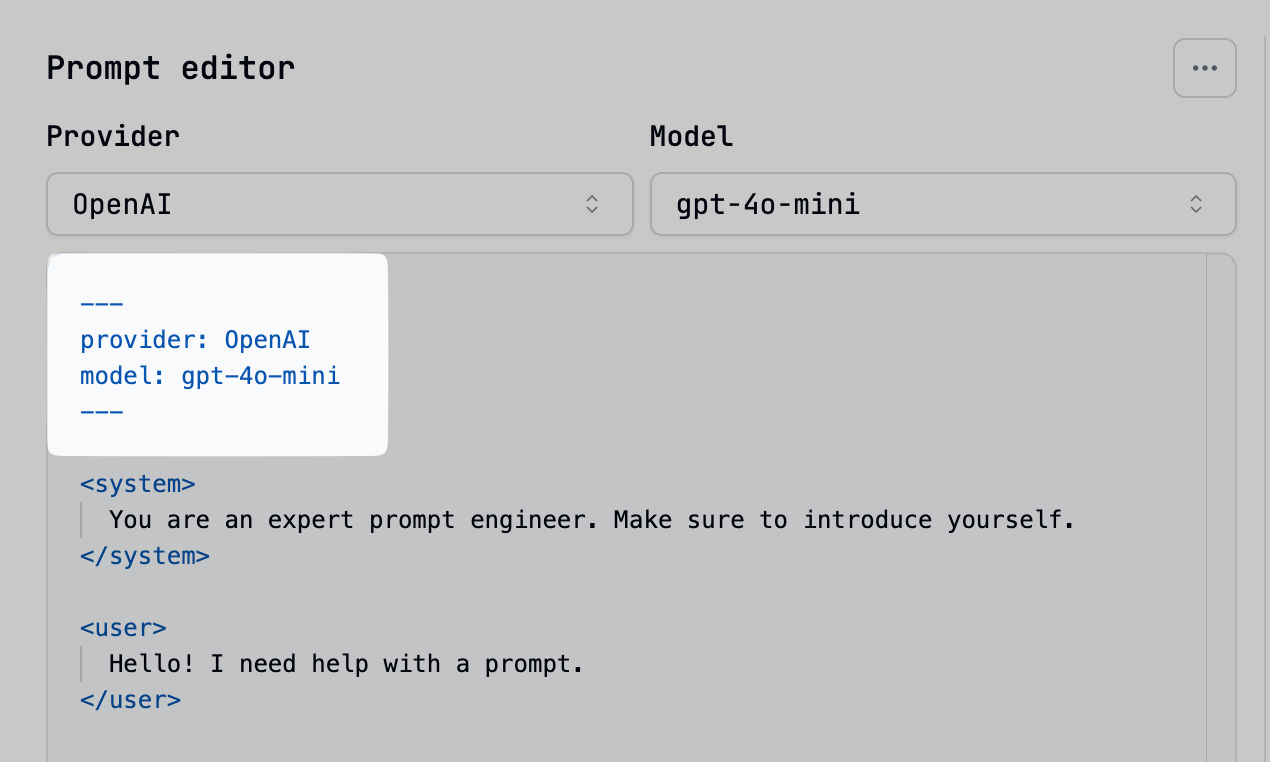 ```yaml theme={null}
---
provider: OpenAI
model: gpt-4o-mini
temperature: 0.6
top_p: 0.9
# ... other settings
---
```
Be sure there is a space after the colon ( : ) in your configurations.
## Core Settings
### Provider (required)
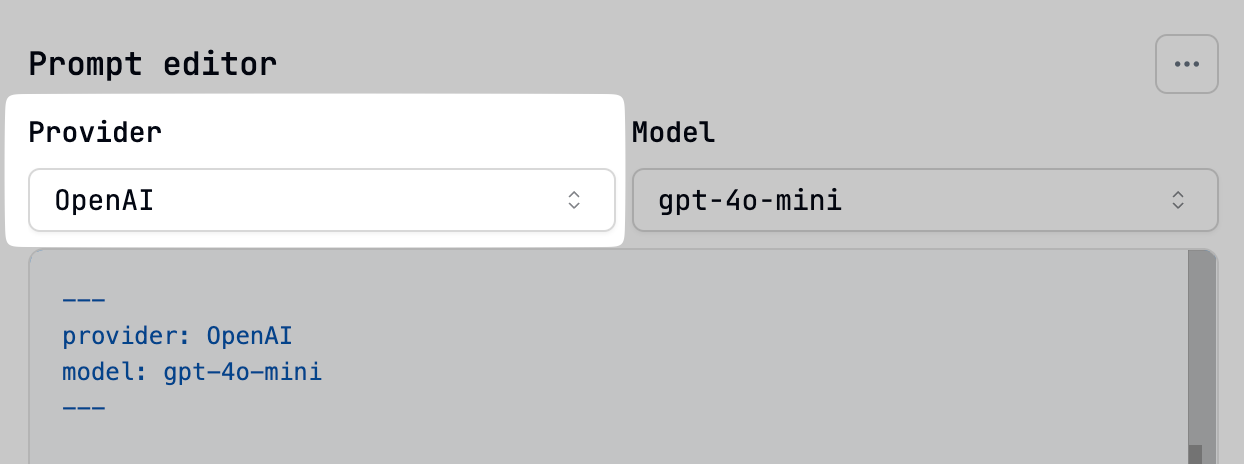
Specifies the AI provider to use (e.g., OpenAI, Anthropic, Google). This must match a provider configured in your Latitude workspace settings.
You can easily select a configured provider using the dropdown in the editor's header.
```yaml theme={null}
---
provider: OpenAI
model: gpt-4o-mini
temperature: 0.6
top_p: 0.9
# ... other settings
---
```
Be sure there is a space after the colon ( : ) in your configurations.
## Core Settings
### Provider (required)
Specifies the AI provider to use (e.g., OpenAI, Anthropic, Google). This must match a provider configured in your Latitude workspace settings.
You can easily select a configured provider using the dropdown in the editor's header.
 [Learn more about configuring providers](/guides/getting-started/providers).
### Model (required)
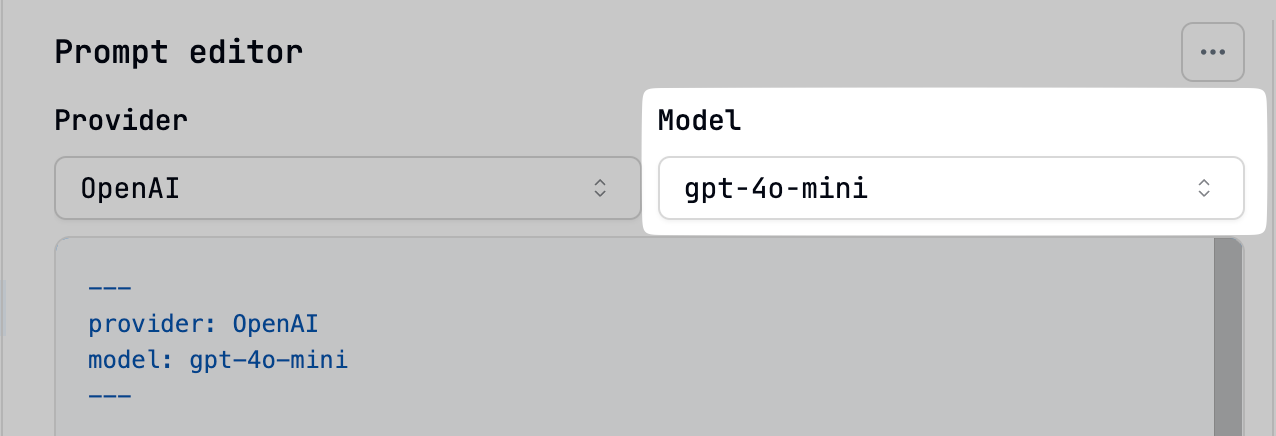
Specifies the exact language model to use (e.g., `gpt-4o-mini`, `claude-3-opus-20240229`). Available models depend on the selected provider.
The model dropdown in the editor's header lists available models for the chosen provider.
[Learn more about configuring providers](/guides/getting-started/providers).
### Model (required)
Specifies the exact language model to use (e.g., `gpt-4o-mini`, `claude-3-opus-20240229`). Available models depend on the selected provider.
The model dropdown in the editor's header lists available models for the chosen provider.
 ## Generation Parameters
These parameters control how the AI model generates its response. The specific ranges and behaviors might vary slightly between providers.
### `temperature`
Controls the randomness of the output. Lower values (e.g., 0.1) make the output more deterministic and focused, while higher values (e.g., 0.9) increase creativity and randomness.
Setting temperature to 0, or leaving it unset, enables response
[caching](/guides/prompt-manager/cache) for identical inputs.
It's generally recommended to adjust *either* `temperature` *or* `topP`, but not both.
### `maxTokens`
Sets the maximum number of tokens (words or parts of words) the model can generate in its response.
### `topP` (Nucleus Sampling)
An alternative to `temperature` for controlling randomness. It instructs the model to consider only the most probable tokens whose cumulative probability mass exceeds the `topP` value (e.g., 0.9 means consider tokens comprising the top 90% probability mass).
### `topK`
Restricts the model to sampling only from the `K` most likely next tokens at each step. Generally used for advanced cases; `temperature` or `topP` are usually sufficient.
### `presencePenalty`
Discourages the model from repeating information already present in the prompt context. Higher values increase the penalty.
### `frequencyPenalty`
Discourages the model from using the same words or phrases repeatedly in its response. Higher values increase the penalty.
### `stopSequences`
A list of strings that, if generated by the model, will cause generation to stop immediately.
### `seed`
An integer used to initialize the random number generator. If supported by the model, using the same seed with identical inputs will produce deterministic outputs, useful for reproducibility.
## Advanced Configuration
### `parameters`
Defines types and constraints for input parameters used in the [Playground](/guides/prompt-manager/playground) or shared prompts.
```yaml theme={null}
parameters:
user_input:
type: text # Default type
image_upload:
type: image
data_file:
type: file
```
[Learn more about parameter types in the Playground guide](/guides/prompt-manager/playground#parameter-types).
### `schema`
Defines a JSON schema to enforce structured output from the model.
[Learn more about enforcing JSON output](/guides/prompt-manager/json-output).
### `tools`
Lists the tools (functions) available for the AI model to call.
[Learn more about configuring tools](/guides/prompt-manager/tools).
### `maxSteps`
Sets the maximum number of execution steps allowed for your prompt (default: 20, max: 150). This prevents infinite loops and controls resource usage in [Chains](/promptl/advanced/chains) and [Agents](/guides/prompt-manager/agents).
**Automatic Application**: By default, Latitude automatically applies `maxSteps: 20` to all documents with configuration. This ensures safe execution limits for tool usage, chains, and multi-step operations.
**Opt-out Behavior**: A document is treated as a simple prompt (without `maxSteps` applied) in two cases:
1. **No configuration section** - Documents without frontmatter (no `---` delimiters)
2. **Explicit type declaration** - Setting `type: prompt` in the configuration
```yaml theme={null}
---
provider: OpenAI
model: gpt-4o-mini
type: prompt # Explicitly opt out of maxSteps behavior
---
```
You can also override the default by explicitly setting your own `maxSteps` value:
```yaml theme={null}
---
provider: OpenAI
model: gpt-4o-mini
maxSteps: 50 # Custom limit
---
```
### `maxRetries`
Maximum number of times to retry a provider call on failure (default: 2).
### `headers`
Sends additional HTTP headers with the request, useful for integrating with specific provider features or observability tools.
## Next Steps
* Test prompts with different settings in the [Playground](/guides/prompt-manager/playground)
* Learn about [Enforcing JSON Output](/guides/prompt-manager/json-output)
* Explore using [Tools](/guides/prompt-manager/tools) and [Agents](/guides/prompt-manager/agents)
## Generation Parameters
These parameters control how the AI model generates its response. The specific ranges and behaviors might vary slightly between providers.
### `temperature`
Controls the randomness of the output. Lower values (e.g., 0.1) make the output more deterministic and focused, while higher values (e.g., 0.9) increase creativity and randomness.
Setting temperature to 0, or leaving it unset, enables response
[caching](/guides/prompt-manager/cache) for identical inputs.
It's generally recommended to adjust *either* `temperature` *or* `topP`, but not both.
### `maxTokens`
Sets the maximum number of tokens (words or parts of words) the model can generate in its response.
### `topP` (Nucleus Sampling)
An alternative to `temperature` for controlling randomness. It instructs the model to consider only the most probable tokens whose cumulative probability mass exceeds the `topP` value (e.g., 0.9 means consider tokens comprising the top 90% probability mass).
### `topK`
Restricts the model to sampling only from the `K` most likely next tokens at each step. Generally used for advanced cases; `temperature` or `topP` are usually sufficient.
### `presencePenalty`
Discourages the model from repeating information already present in the prompt context. Higher values increase the penalty.
### `frequencyPenalty`
Discourages the model from using the same words or phrases repeatedly in its response. Higher values increase the penalty.
### `stopSequences`
A list of strings that, if generated by the model, will cause generation to stop immediately.
### `seed`
An integer used to initialize the random number generator. If supported by the model, using the same seed with identical inputs will produce deterministic outputs, useful for reproducibility.
## Advanced Configuration
### `parameters`
Defines types and constraints for input parameters used in the [Playground](/guides/prompt-manager/playground) or shared prompts.
```yaml theme={null}
parameters:
user_input:
type: text # Default type
image_upload:
type: image
data_file:
type: file
```
[Learn more about parameter types in the Playground guide](/guides/prompt-manager/playground#parameter-types).
### `schema`
Defines a JSON schema to enforce structured output from the model.
[Learn more about enforcing JSON output](/guides/prompt-manager/json-output).
### `tools`
Lists the tools (functions) available for the AI model to call.
[Learn more about configuring tools](/guides/prompt-manager/tools).
### `maxSteps`
Sets the maximum number of execution steps allowed for your prompt (default: 20, max: 150). This prevents infinite loops and controls resource usage in [Chains](/promptl/advanced/chains) and [Agents](/guides/prompt-manager/agents).
**Automatic Application**: By default, Latitude automatically applies `maxSteps: 20` to all documents with configuration. This ensures safe execution limits for tool usage, chains, and multi-step operations.
**Opt-out Behavior**: A document is treated as a simple prompt (without `maxSteps` applied) in two cases:
1. **No configuration section** - Documents without frontmatter (no `---` delimiters)
2. **Explicit type declaration** - Setting `type: prompt` in the configuration
```yaml theme={null}
---
provider: OpenAI
model: gpt-4o-mini
type: prompt # Explicitly opt out of maxSteps behavior
---
```
You can also override the default by explicitly setting your own `maxSteps` value:
```yaml theme={null}
---
provider: OpenAI
model: gpt-4o-mini
maxSteps: 50 # Custom limit
---
```
### `maxRetries`
Maximum number of times to retry a provider call on failure (default: 2).
### `headers`
Sends additional HTTP headers with the request, useful for integrating with specific provider features or observability tools.
## Next Steps
* Test prompts with different settings in the [Playground](/guides/prompt-manager/playground)
* Learn about [Enforcing JSON Output](/guides/prompt-manager/json-output)
* Explore using [Tools](/guides/prompt-manager/tools) and [Agents](/guides/prompt-manager/agents)