> ## Documentation Index
> Fetch the complete documentation index at: https://docs-v1.latitude.so/llms.txt
> Use this file to discover all available pages before exploring further.
# Overview
> Understand the different ways to evaluate prompt performance in Latitude.
Evaluations are crucial for understanding and improving the quality of your AI prompt responses. Latitude provides a comprehensive evaluation framework to assess performance against various criteria.
## Why Evaluate Prompts?
* **Measure Quality**: Objectively assess if prompts meet desired standards (accuracy, relevance, tone, safety, etc.).
* **Identify Weaknesses**: Pinpoint scenarios where prompts underperform.
* **Compare Versions**: Quantify the impact of prompt changes (A/B testing).
* **Drive Improvement**: Gather data to refine prompts using [Prompt Suggestions](/guides/evaluations/prompt-suggestions).
* **Ensure Reliability**: Build confidence in production-deployed prompts.
## Evaluation Types
Latitude supports three main approaches to evaluation, each suited for different needs:
1. [**LLM-as-Judge**](/guides/evaluations/llm-as-judges):
* **How it works**: Uses another language model (the "judge") to score or critique the output of your target prompt based on specific criteria (e.g., helpfulness, clarity, adherence to instructions).
* **Best for**: Subjective criteria, complex assessments, evaluating nuanced qualities like creativity or tone.
* **Requires**: Defining evaluation criteria (often via templates or custom instructions for the judge LLM).
2. [**Programmatic Rule**](/guides/evaluations/programmatic-rules):
* **How it works**: Applies code-based rules and metrics to check outputs against objective criteria.
* **Best for**: Objective checks, ground truth comparisons (using datasets), format validation (JSON, regex), safety checks (keyword detection), length constraints.
* **Requires**: Defining specific rules (e.g., exact match, contains keyword, JSON schema validation) and potentially providing a [Dataset](/guides/datasets/overview) with expected outputs.
3. [**Human-in-the-Loop**](/guides/evaluations/humans-in-the-loop):
* **How it works**: Team members manually review prompt outputs (logs) and assign scores or labels based on their judgment.
* **Best for**: Capturing nuanced human preferences, evaluating criteria difficult for LLMs to judge, initial quality assessment, creating golden datasets for other evaluation types.
* **Requires**: Setting up manual review workflows and criteria for reviewers.
## Combining Evaluations
Sometimes you want to summarize the results of multiple evaluations into a single score, defining, for example, an overall performance report of your prompt.
To do this, you can use [Composite Evaluations](/guides/evaluations/composite-scores), also named *Composite Scores*.
## How Evaluations Connect to Prompts
* **Per-Prompt Basis**: Evaluations are configured individually for each prompt within a project.
* **Target Logs**: Evaluations run on the [Logs](/guides/logs/overview) generated by their associated prompt.
* **Triggering**: Evaluations can be run manually on batches of logs/datasets or automatically on incoming logs (live mode). See [Running Evaluations](/guides/evaluations/running-evaluations).
* **Results**: Evaluation results (scores, labels, feedback) are stored alongside the corresponding logs, providing a rich dataset for analysis and improvement.
## Actual Outputs
The actual output is the generated output from the model conversation. This is the output to perform evaluations against.
### Selecting the Actual Output to evaluate against
By default the actual output is the last assistant message in the conversation, parsed as a simple string. However, some use cases requires more complex parsing, like evaluating tool calling or middle CoT.
1. Go to the evaluation's settings by clicking on the right-side button in the evaluation's dashboard:
 2. Click on **Advanced configuration**.
3. Configure:
* Message selection: The last message or all messages in the conversation.
* Content filter: Optionally filter the messages by content type (e.g., text, images, tool calls...).
* Parsing format: The format to parse the actual output into (e.g., string, JSON, YAML...).
* Field accessor: The optional field to access in the actual output (e.g., `answer`, `arguments.recommendations[2]`, `[-1].tool_name`, ...).
2. Click on **Advanced configuration**.
3. Configure:
* Message selection: The last message or all messages in the conversation.
* Content filter: Optionally filter the messages by content type (e.g., text, images, tool calls...).
* Parsing format: The format to parse the actual output into (e.g., string, JSON, YAML...).
* Field accessor: The optional field to access in the actual output (e.g., `answer`, `arguments.recommendations[2]`, `[-1].tool_name`, ...).
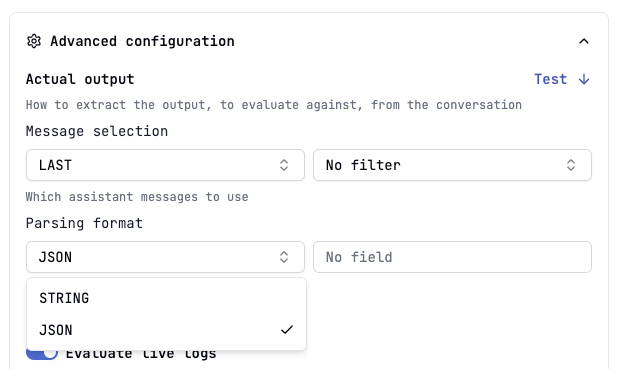 4. Test the configuration by clicking on the "Test" button:
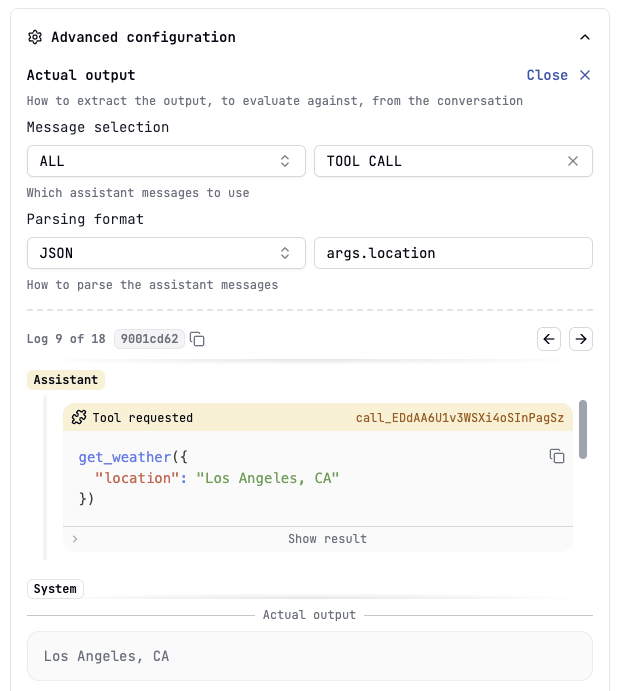 Take into account that messages with multiple content are flattened into individual ones and stringification is done deterministically.
## Expected Outputs
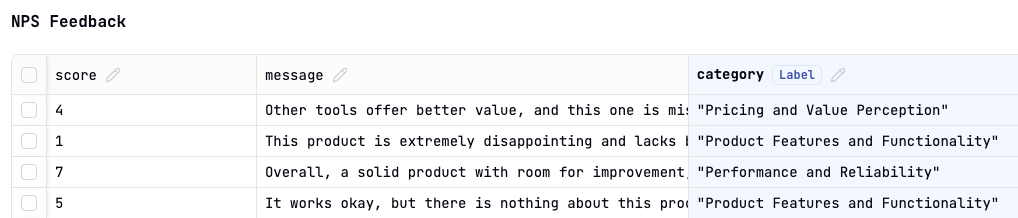
The expected output, also known as label, refers to the correct or ideal response that the language model should generate for a given prompt. You can create [Datasets](/guides/datasets/overview) with [Expected Output Columns](/guides/datasets/overview#marking-an-expected-output-column-as-a-label) to evaluate prompts with ground truth.
Take into account that messages with multiple content are flattened into individual ones and stringification is done deterministically.
## Expected Outputs
The expected output, also known as label, refers to the correct or ideal response that the language model should generate for a given prompt. You can create [Datasets](/guides/datasets/overview) with [Expected Output Columns](/guides/datasets/overview#marking-an-expected-output-column-as-a-label) to evaluate prompts with ground truth.
 ### Selecting the Expected Output to evaluate against
By default the expected output is the value of the dataset column, parsed as a simple string. However, some use cases requires more complex parsing, like complex JSON objects or nested arrays.
1. Go to the evaluation's settings by clicking on the right-side button in the evaluation's dashboard:
2. Click on **Advanced configuration**.
3. Configure:
* Parsing format: The format to parse the expected output into (e.g., string, JSON, YAML...).
* Field accessor: The optional field to access in the expected output (e.g., `answer`, `arguments.recommendations[2]`, `[-1].tool_name`, ...).
### Selecting the Expected Output to evaluate against
By default the expected output is the value of the dataset column, parsed as a simple string. However, some use cases requires more complex parsing, like complex JSON objects or nested arrays.
1. Go to the evaluation's settings by clicking on the right-side button in the evaluation's dashboard:
2. Click on **Advanced configuration**.
3. Configure:
* Parsing format: The format to parse the expected output into (e.g., string, JSON, YAML...).
* Field accessor: The optional field to access in the expected output (e.g., `answer`, `arguments.recommendations[2]`, `[-1].tool_name`, ...).
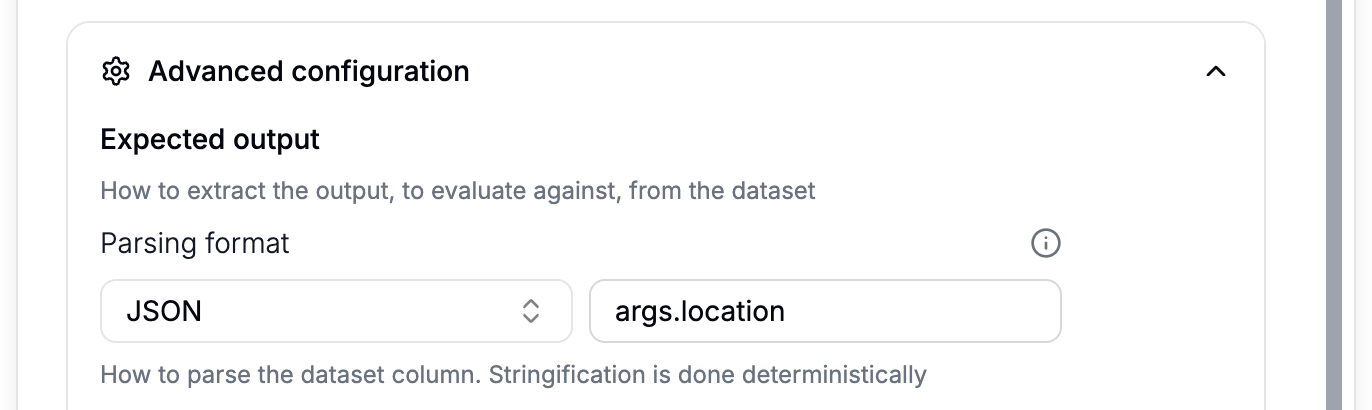 Take into account that stringification is done deterministically.
## Negative Evaluations
Sometimes, you want to measure undesirable traits (e.g., toxicity, hallucination presence), where a *lower* score is better. Latitude allows you to mark evaluations as "negative".
1. Go to the evaluation's settings by clicking on the right-side button in the evaluation's dashboard:
2. Click on **Advanced configuration**.
3. Select "optimize for a lower score" to indicate high scores are undesirable:
Take into account that stringification is done deterministically.
## Negative Evaluations
Sometimes, you want to measure undesirable traits (e.g., toxicity, hallucination presence), where a *lower* score is better. Latitude allows you to mark evaluations as "negative".
1. Go to the evaluation's settings by clicking on the right-side button in the evaluation's dashboard:
2. Click on **Advanced configuration**.
3. Select "optimize for a lower score" to indicate high scores are undesirable:
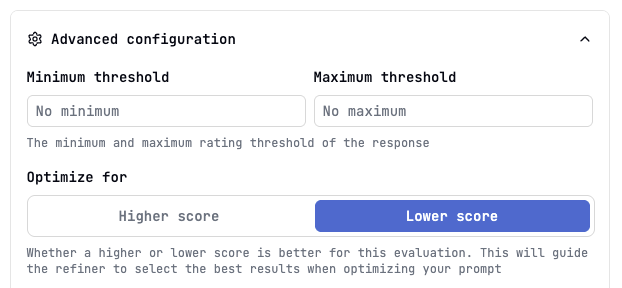 > The [Prompt Suggestions](/guides/evaluations/prompt-suggestions) feature will use this setting to optimize correctly.
## Next Steps
Dive deeper into each evaluation type:
* [LLM-as-Judges](/guides/evaluations/llm-as-judges)
* [Programmatic Rules](/guides/evaluations/programmatic-rules)
* [HITL (Humans in the Loop)](/guides/evaluations/humans-in-the-loop)
* [Composite Scores](/guides/evaluations/composite-scores)
> The [Prompt Suggestions](/guides/evaluations/prompt-suggestions) feature will use this setting to optimize correctly.
## Next Steps
Dive deeper into each evaluation type:
* [LLM-as-Judges](/guides/evaluations/llm-as-judges)
* [Programmatic Rules](/guides/evaluations/programmatic-rules)
* [HITL (Humans in the Loop)](/guides/evaluations/humans-in-the-loop)
* [Composite Scores](/guides/evaluations/composite-scores)