> ## Documentation Index
> Fetch the complete documentation index at: https://docs-v1.latitude.so/llms.txt
> Use this file to discover all available pages before exploring further.
# Overview
> Learn how to create, manage, and utilize datasets for batch testing and evaluation.
Datasets in Latitude are collections of data, used primarily for running prompt experiments in the [playground](/guides/prompt-manager/playground) or in the context of [an evaluation](/guides/evaluations/running-evaluations#running-evaluations-on-datasets-run-experiment). They allow you to test your prompts against a consistent set of inputs and expected outputs.
## What is a Dataset?
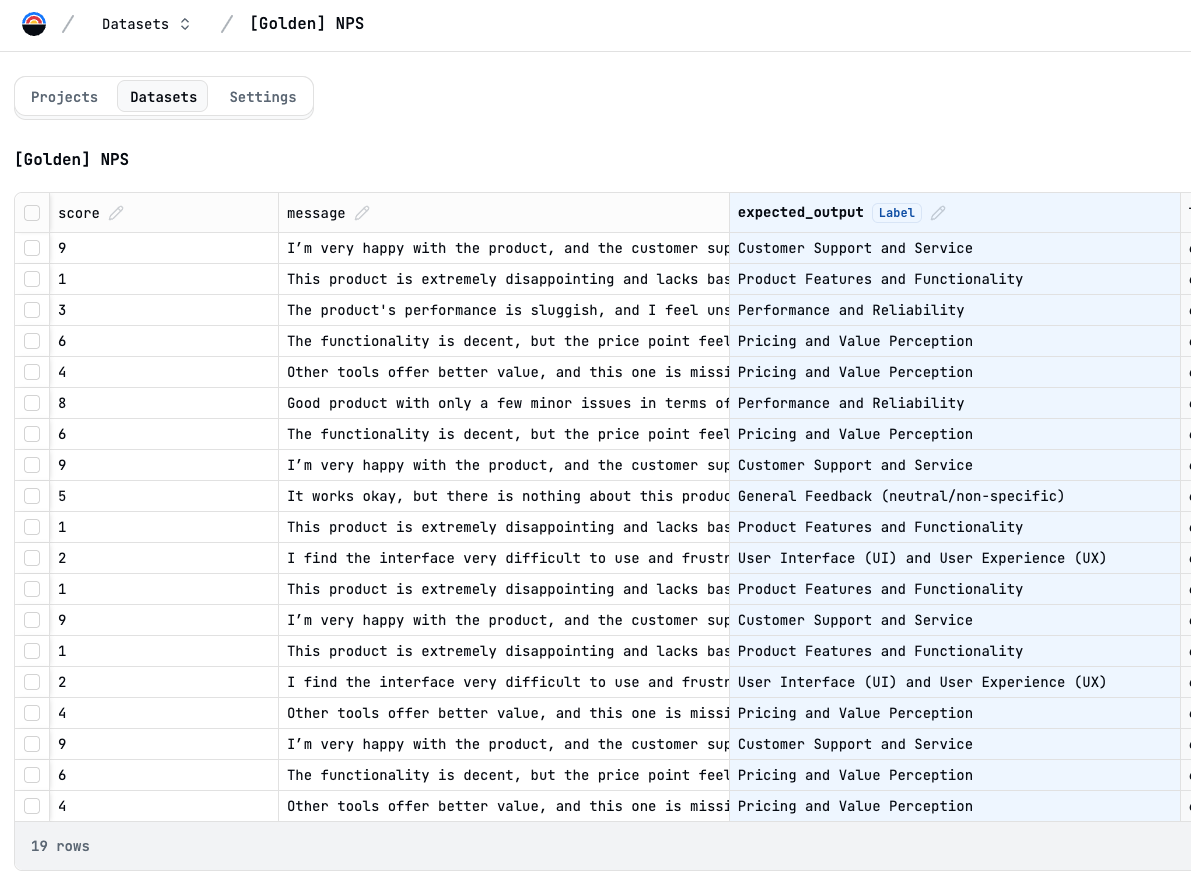
A dataset consists of rows and columns, where:
* **Input Columns**: Represent the parameters your prompt expects (e.g., `customer_query`, `product_name`).
* **Output/Label Columns (Optional)**: Contain the ground truth or expected outputs for specific inputs (e.g., `expected_sentiment`, `ideal_summary`). These are required for evaluations like Exact Match or Semantic Similarity.
Each row represents a single test case for your prompt.
 ## Creating Datasets
You can create datasets in Latitude in several ways:
### 1. Uploading CSV Files
This is the most common method for bringing existing test data into Latitude.
1. Navigate to the "Datasets" section in your project.
2. Click "Upload Dataset".
3. Drag and drop your CSV file or browse to select it.
## Creating Datasets
You can create datasets in Latitude in several ways:
### 1. Uploading CSV Files
This is the most common method for bringing existing test data into Latitude.
1. Navigate to the "Datasets" section in your project.
2. Click "Upload Dataset".
3. Drag and drop your CSV file or browse to select it.
 4. **Preview and Configure**: Latitude will show a preview of your data. You may need to confirm:
* Column headers are correctly identified.
* Data types are inferred correctly.
5. Give your dataset a descriptive name.
6. Click "Create Dataset".
### 2. Generating Synthetic Data
Latitude can use an AI model to generate synthetic datasets based on your specifications, useful for quickly creating test cases or exploring variations.
1. Navigate to the [Datasets](https://app.latitude.so/datasets) section.
2. Click **Generate Dataset**.
3. Describe the data you need:
* Specify the desired columns (e.g., `user_query`, `expected_category`).
* Provide instructions on the type of data for each column (e.g., "Generate realistic user support questions", "Assign a category from \[Billing, Technical, General]").
* Indicate the number of rows to generate.
4. **Preview and Configure**: Latitude will show a preview of your data. You may need to confirm:
* Column headers are correctly identified.
* Data types are inferred correctly.
5. Give your dataset a descriptive name.
6. Click "Create Dataset".
### 2. Generating Synthetic Data
Latitude can use an AI model to generate synthetic datasets based on your specifications, useful for quickly creating test cases or exploring variations.
1. Navigate to the [Datasets](https://app.latitude.so/datasets) section.
2. Click **Generate Dataset**.
3. Describe the data you need:
* Specify the desired columns (e.g., `user_query`, `expected_category`).
* Provide instructions on the type of data for each column (e.g., "Generate realistic user support questions", "Assign a category from \[Billing, Technical, General]").
* Indicate the number of rows to generate.
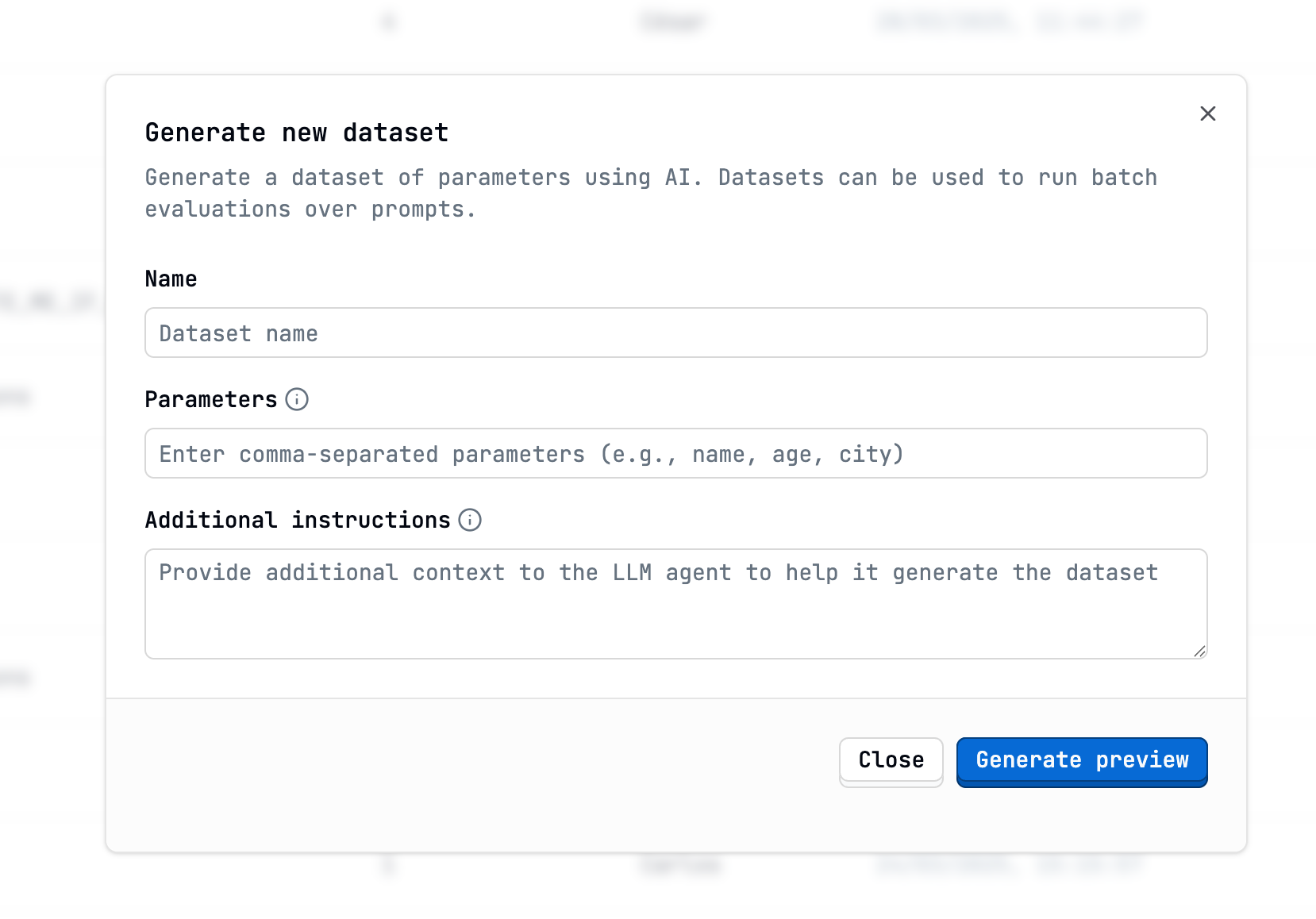 4. Click "Generate Dataset".
The generator has limits on complexity and runtime. For large or very complex
datasets, uploading a CSV is often more reliable. Start with smaller
generation requests (e.g., 20-50 rows) to test.
### 3. Saving Logs as Datasets
You can create a new dataset directly from existing production logs, which is excellent for evaluating prompts against real-world interactions.
1. Navigate to the **Logs** section of one of your prompts.
2. Select the logs you want to include in the dataset.
3. Click the **Save logs to Dataset** button (or similar option).
4. Click "Generate Dataset".
The generator has limits on complexity and runtime. For large or very complex
datasets, uploading a CSV is often more reliable. Start with smaller
generation requests (e.g., 20-50 rows) to test.
### 3. Saving Logs as Datasets
You can create a new dataset directly from existing production logs, which is excellent for evaluating prompts against real-world interactions.
1. Navigate to the **Logs** section of one of your prompts.
2. Select the logs you want to include in the dataset.
3. Click the **Save logs to Dataset** button (or similar option).
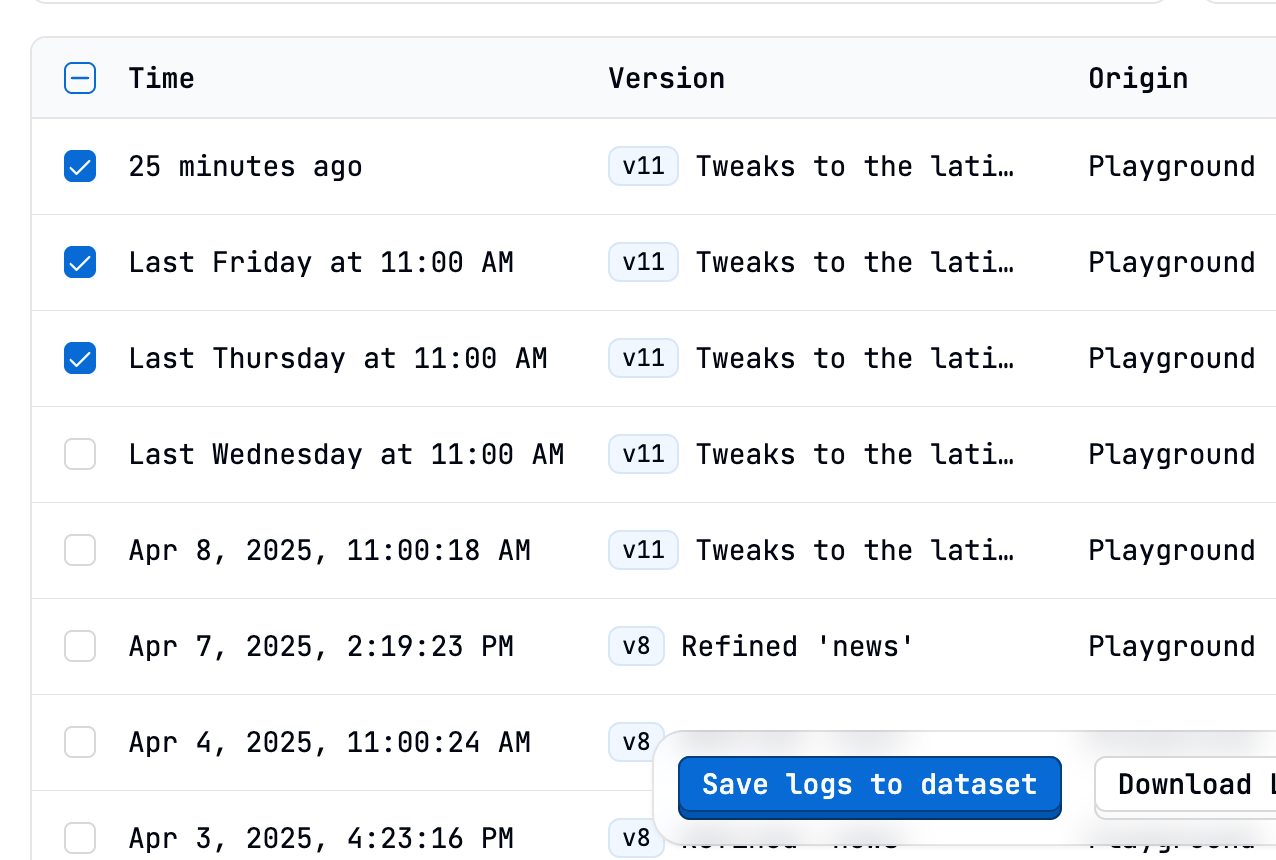 4. Choose in the form whether to create a new dataset or save the logs to an existing dataset.
5. Confirm your selection
## Managing Datasets
Once created, you can manage your datasets from the main "Datasets" page:
* **View**: Click on a dataset name to view its contents.
* **Edit**: Modify, add and remove dataset rows or columns.
* **Rename**: Change the dataset's name.
* **Download**: Export the dataset as a CSV file.
* **Delete**: Permanently remove a dataset.
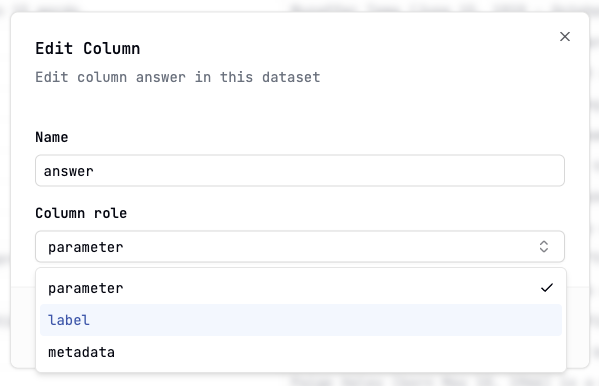
### Marking an Expected Output Column as a Label
You can mark an expected output column as a label by:
1. Click on the edit button next to the column's name:
4. Choose in the form whether to create a new dataset or save the logs to an existing dataset.
5. Confirm your selection
## Managing Datasets
Once created, you can manage your datasets from the main "Datasets" page:
* **View**: Click on a dataset name to view its contents.
* **Edit**: Modify, add and remove dataset rows or columns.
* **Rename**: Change the dataset's name.
* **Download**: Export the dataset as a CSV file.
* **Delete**: Permanently remove a dataset.
### Marking an Expected Output Column as a Label
You can mark an expected output column as a label by:
1. Click on the edit button next to the column's name:
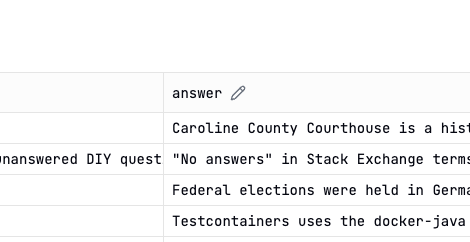 2. Set the column's role to "label":
 ## Linking Datasets to Evaluations
The primary use of datasets is to run evaluations in batch mode:
1. Go to the specific evaluation you want to run (under a prompt's "Evaluations" tab).
2. Initiate an [Experiment in the evaluation](/guides/evaluations/running-evaluations#running-evaluations-on-datasets-batch-mode).
3. Select the dataset you want to use.
4. If the evaluation requires ground truth (e.g., Exact Match), map the evaluation's expected output requirement to the relevant column in your dataset (e.g., link `expected_output` to the `ideal_summary` column).
Latitude then runs the prompt for each row in the dataset and applies the evaluation, comparing the output to the corresponding data in the dataset row.
## Next Steps
* Learn about establishing [Golden Datasets for Regression Testing](/guides/datasets/golden-datasets)
* Understand how to [Run Evaluations](/guides/evaluations/running-evaluations)
* Explore [Using Datasets for Fine-tuning](/guides/datasets/datasets-for-finetuning)
## Linking Datasets to Evaluations
The primary use of datasets is to run evaluations in batch mode:
1. Go to the specific evaluation you want to run (under a prompt's "Evaluations" tab).
2. Initiate an [Experiment in the evaluation](/guides/evaluations/running-evaluations#running-evaluations-on-datasets-batch-mode).
3. Select the dataset you want to use.
4. If the evaluation requires ground truth (e.g., Exact Match), map the evaluation's expected output requirement to the relevant column in your dataset (e.g., link `expected_output` to the `ideal_summary` column).
Latitude then runs the prompt for each row in the dataset and applies the evaluation, comparing the output to the corresponding data in the dataset row.
## Next Steps
* Learn about establishing [Golden Datasets for Regression Testing](/guides/datasets/golden-datasets)
* Understand how to [Run Evaluations](/guides/evaluations/running-evaluations)
* Explore [Using Datasets for Fine-tuning](/guides/datasets/datasets-for-finetuning)