> ## Documentation Index
> Fetch the complete documentation index at: https://docs-v1.latitude.so/llms.txt
> Use this file to discover all available pages before exploring further.
# Customer Support Quality Assurance
> Implement a comprehensive QA system for customer support responses using Rating-based LLM evaluation, Exact Match rules, and Manual review
Try out this agent setup in the Latitude Playground.
## Overview
This tutorial demonstrates how to build a quality assurance system for customer support responses using three specific Latitude evaluation types:
* **LLM-as-Judge**: Rating evaluation for helpfulness assessment
* **Programmatic Rules** with Exact Match for required information validation
* **Human-in-the-Loop** manual evaluation for customer satisfaction scoring
## The Prompt
This is the prompt that will be used to generate customer support responses. It is a simple prompt that takes a customer query and generates a response. It doesn't use a knowledge base or any additional information.
```markdown main theme={null}
---
provider: OpenAI
model: gpt-4.1
---
You are a helpful customer support agent. Respond to the customer inquiry below with empathy and provide a clear solution.
Customer inquiry: {{customer_message}}
Customer tier: {{tier}}
Product: {{product_name}}
Requirements:
- Always include the ticket number: {{ticket_number}}
- Address the customer by name if provided
- Provide specific next steps
- End with "Is there anything else I can help you with today?"
```
In this example, the prompt is very simple, but you could also upload documents to OpenAI and use their new [Responses API file search](https://platform.openai.com/docs/guides/tools-file-search). This implements a knowledge base search that can be used to find relevant information in the documents, so your responses to customer support queries can be based on actual documentation. However, this is out of the scope of this tutorial.
## The Evaluations
To create new evaluations, go to the evaluations tab in the Latitude Playground and click on "Add Evaluation".
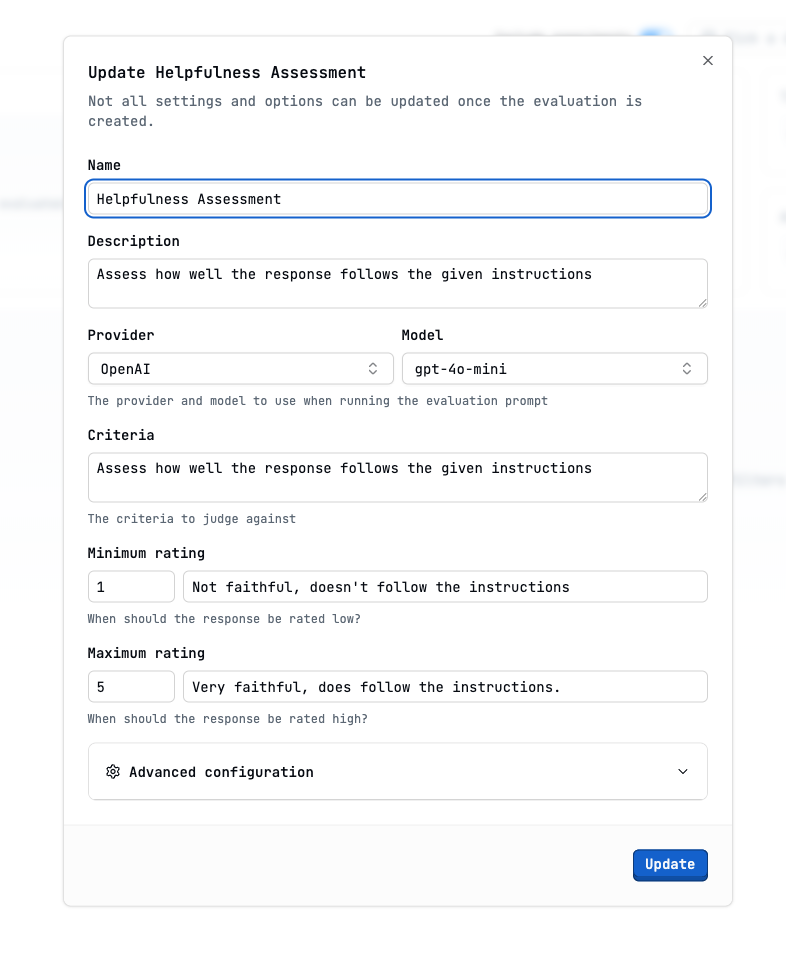
 This is how we configure an LLM-as-Judge evaluation to assess the helpfulness of customer support responses.
This evaluation uses the Rating metric from the AI to assess response quality, with criteria such as **Assess how well the response follows the given instructions** and a 1-5 rating scale where 1 means **Not faithful, doesn't follow the instructions** and 5 means **Very faithful, follows the instructions**.
This is how we configure an LLM-as-Judge evaluation to assess the helpfulness of customer support responses.
This evaluation uses the Rating metric from the AI to assess response quality, with criteria such as **Assess how well the response follows the given instructions** and a 1-5 rating scale where 1 means **Not faithful, doesn't follow the instructions** and 5 means **Very faithful, follows the instructions**.
 An [Experiment](/guides/experiments/overview) is a way of running the prompt many times and validating, with this evaluation, if it passes the criteria.
Before creating the experiment, we need to create a dataset. Click on "Generate dataset".
An [Experiment](/guides/experiments/overview) is a way of running the prompt many times and validating, with this evaluation, if it passes the criteria.
Before creating the experiment, we need to create a dataset. Click on "Generate dataset".
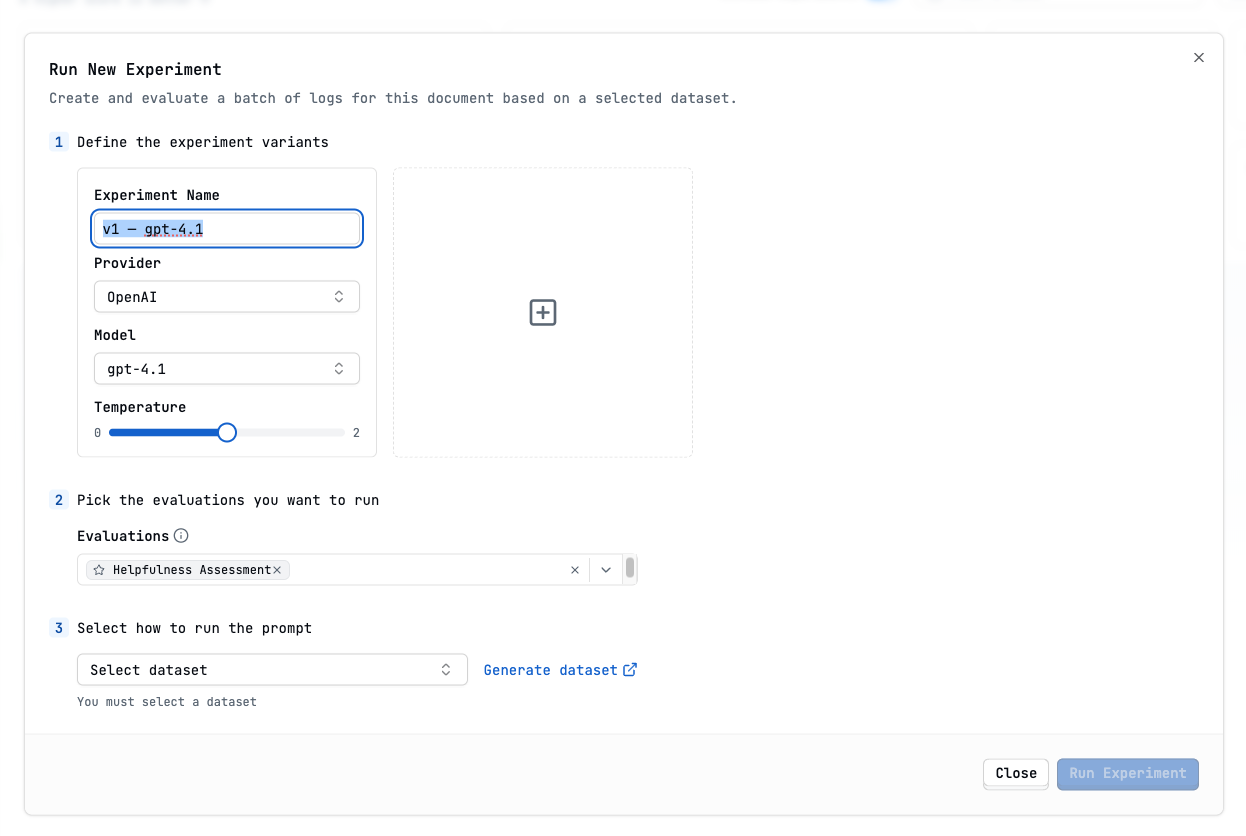 A synthetic dataset is generated by the system to test the evaluation. It allows us to test the evaluation without having to create a real dataset. It sets columns for each parameter in our prompt.
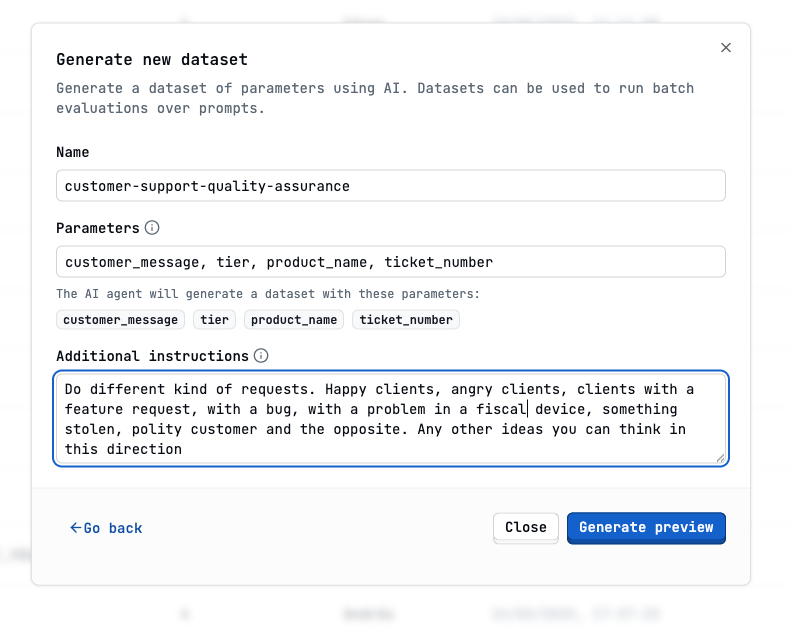 Once we have the dataset, select it in the dataset selector and click "Run experiment".
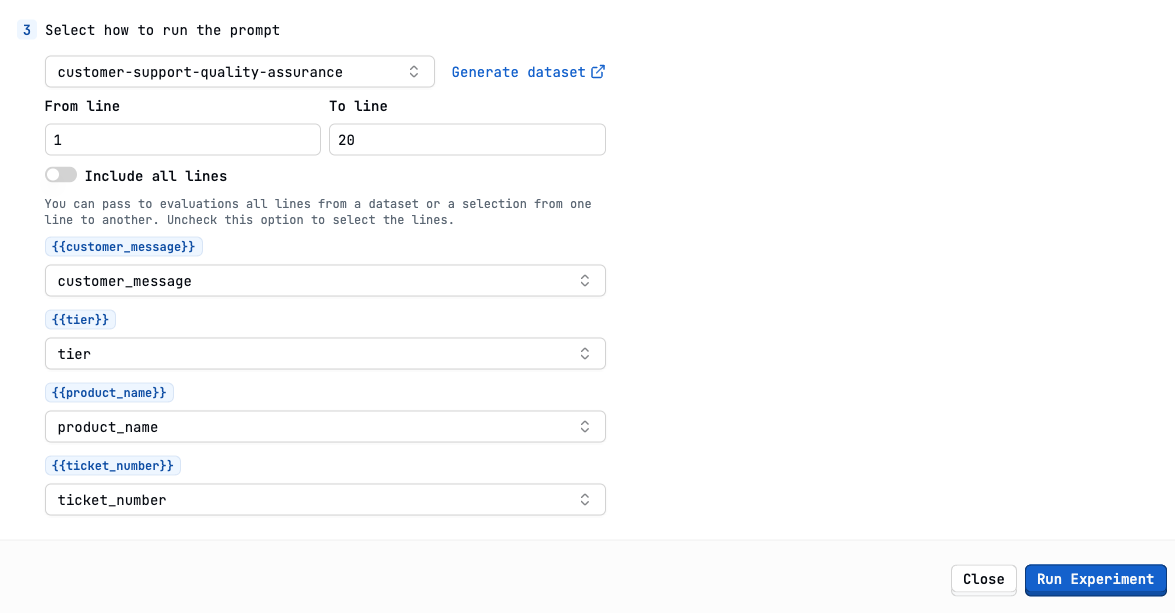 You can see how the columns in this dataset have to match the parameters in our prompt.
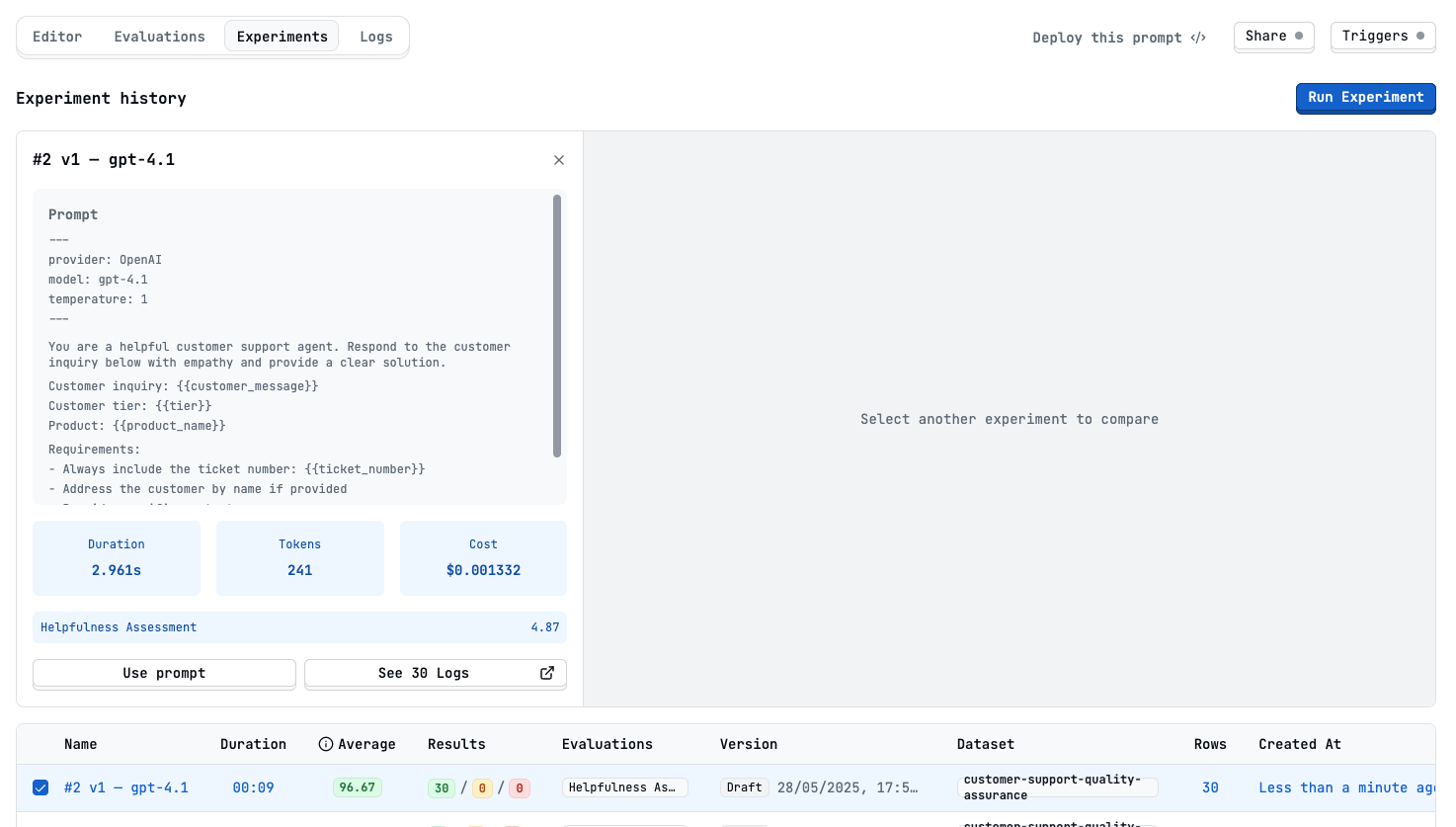
After running the experiment with 30 rows of the synthetic dataset you just created, you can see the results! The green counter shows the successful cases. Yellow represents results that failed the evaluation, and red means errors occurred during the experiment run.
You can see how the columns in this dataset have to match the parameters in our prompt.
After running the experiment with 30 rows of the synthetic dataset you just created, you can see the results! The green counter shows the successful cases. Yellow represents results that failed the evaluation, and red means errors occurred during the experiment run.
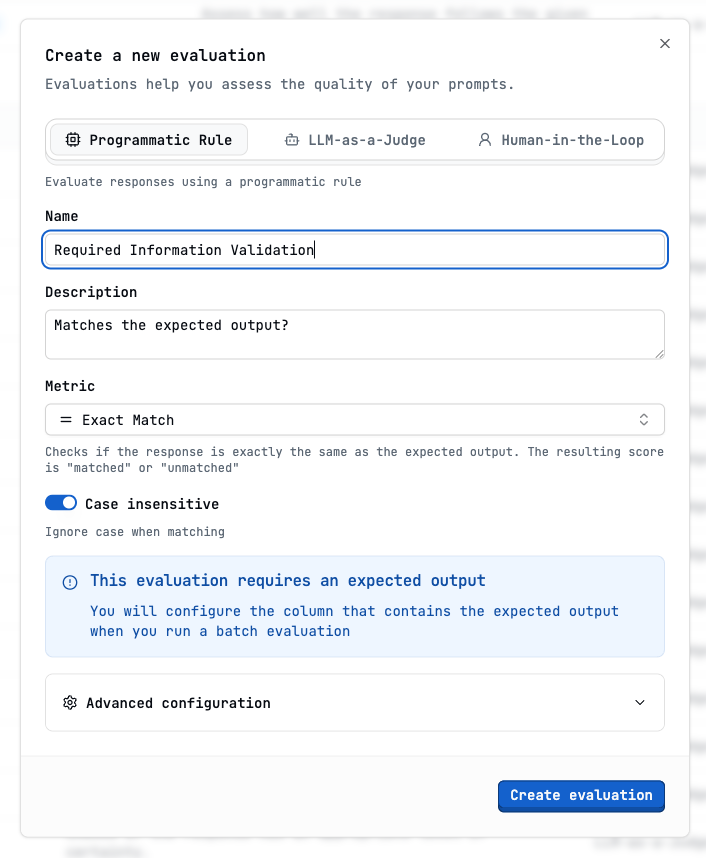
 The goal of this evaluation is to ensure every response contains mandatory elements like ticket numbers and proper closing statements. Let's set it up.
This rule cannot be used with your real logs. It needs an **expected output** to match.
The goal of this evaluation is to ensure every response contains mandatory elements like ticket numbers and proper closing statements. Let's set it up.
This rule cannot be used with your real logs. It needs an **expected output** to match.
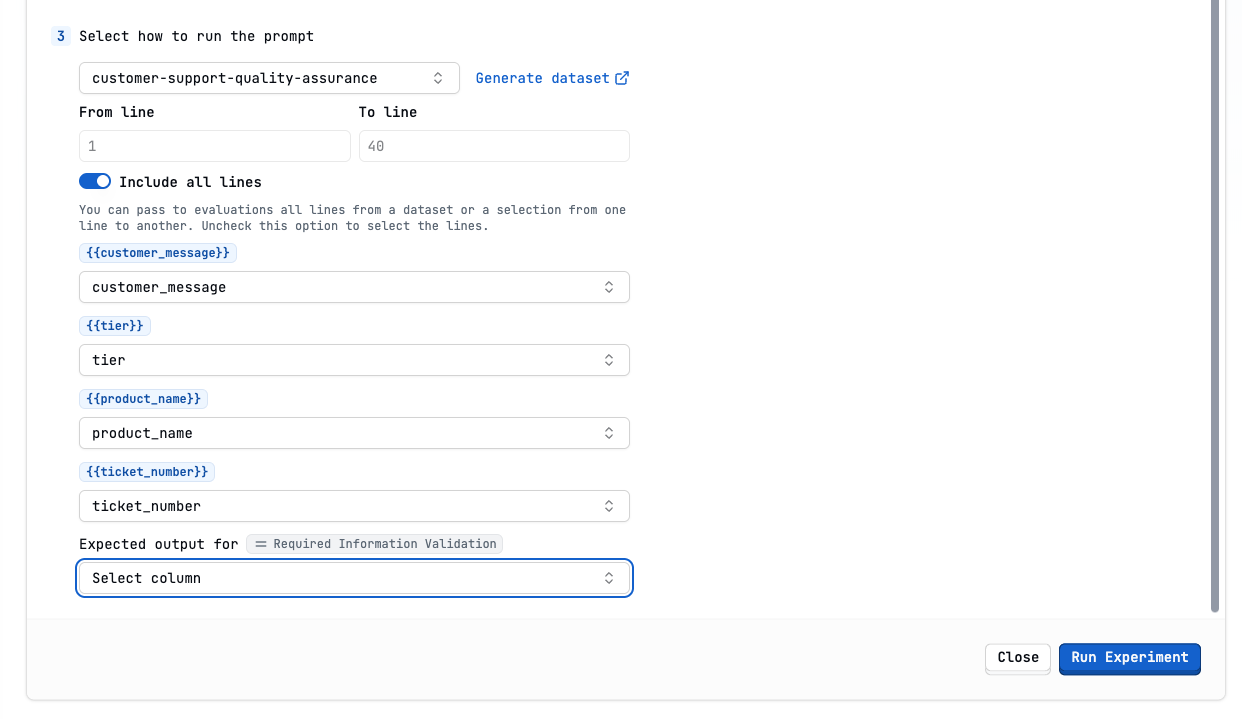
 We need to create another dataset, but this time it must have an **expected output** column.
You can use the same dataset but add a new column with the expected output. In this case, we want to ensure our prompt always responds with the sentence **Is there anything else I can help you with today?**
We need to create another dataset, but this time it must have an **expected output** column.
You can use the same dataset but add a new column with the expected output. In this case, we want to ensure our prompt always responds with the sentence **Is there anything else I can help you with today?**
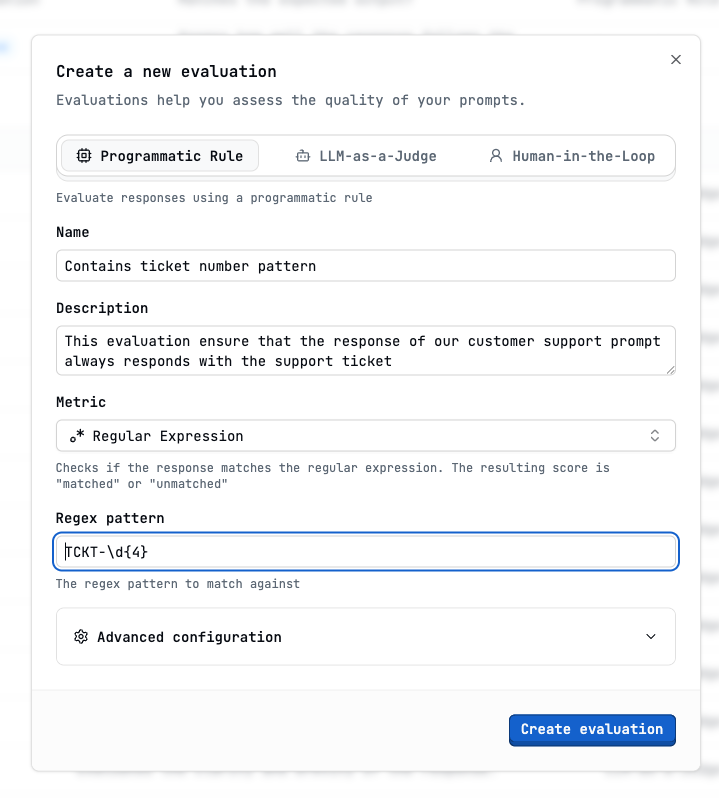
 To configure this evaluation, we use a regular expression to ensure the customer support response contains a ticket number.
So in this case, we require:
1. The ticket number starts with `TCKT-`
2. Followed by 4 digits (`-\d{4}`)
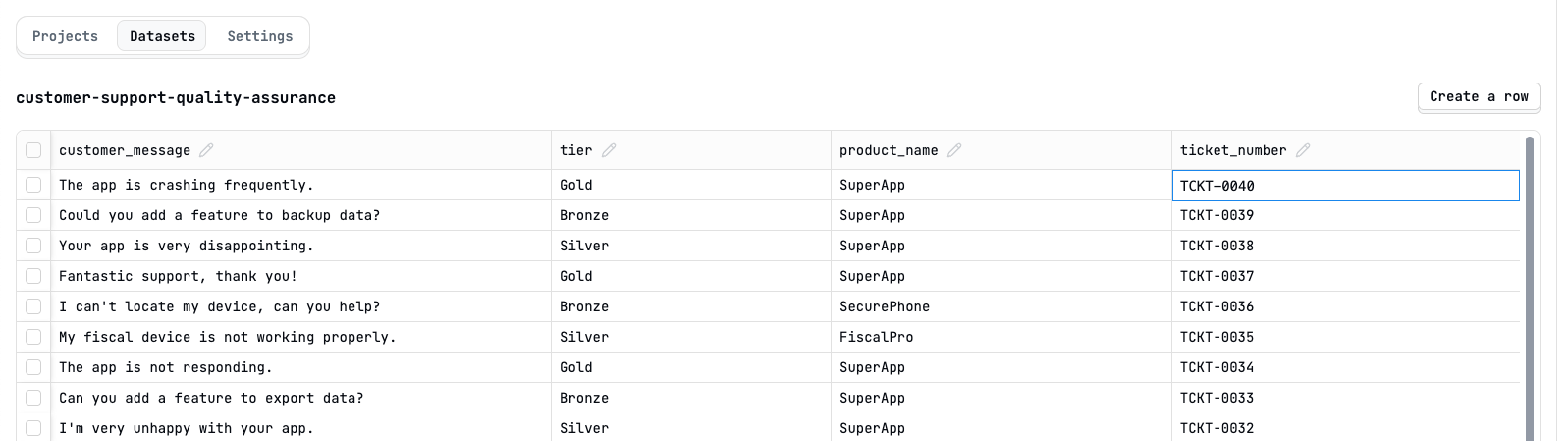
This is the shape of our ticket column in the dataset.
To configure this evaluation, we use a regular expression to ensure the customer support response contains a ticket number.
So in this case, we require:
1. The ticket number starts with `TCKT-`
2. Followed by 4 digits (`-\d{4}`)
This is the shape of our ticket column in the dataset.
 Now we're ready to create this new evaluation.
 This step is the same as for the first evaluation. We create an experiment and see the results. In this case, we should see that the AI responded with the ticket number because it's part of our prompt. This is a basic check, but ensures future modifications to the prompt keep the ticket number.
Customer satisfaction involves nuanced judgment about tone, cultural sensitivity, and domain-specific accuracy that automated systems might miss, making it perfect for human evaluation.
This step is the same as for the first evaluation. We create an experiment and see the results. In this case, we should see that the AI responded with the ticket number because it's part of our prompt. This is a basic check, but ensures future modifications to the prompt keep the ticket number.
Customer satisfaction involves nuanced judgment about tone, cultural sensitivity, and domain-specific accuracy that automated systems might miss, making it perfect for human evaluation.
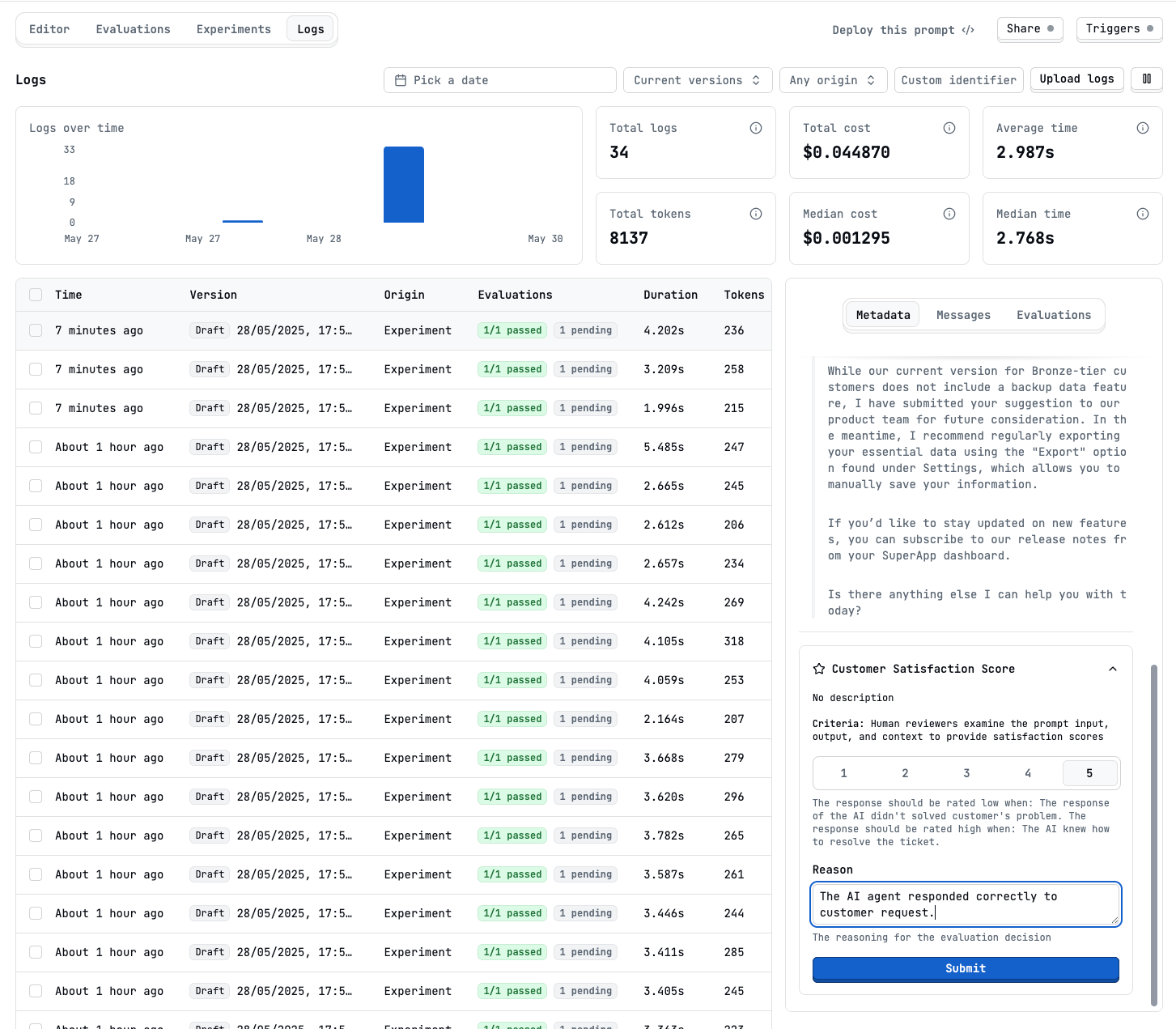
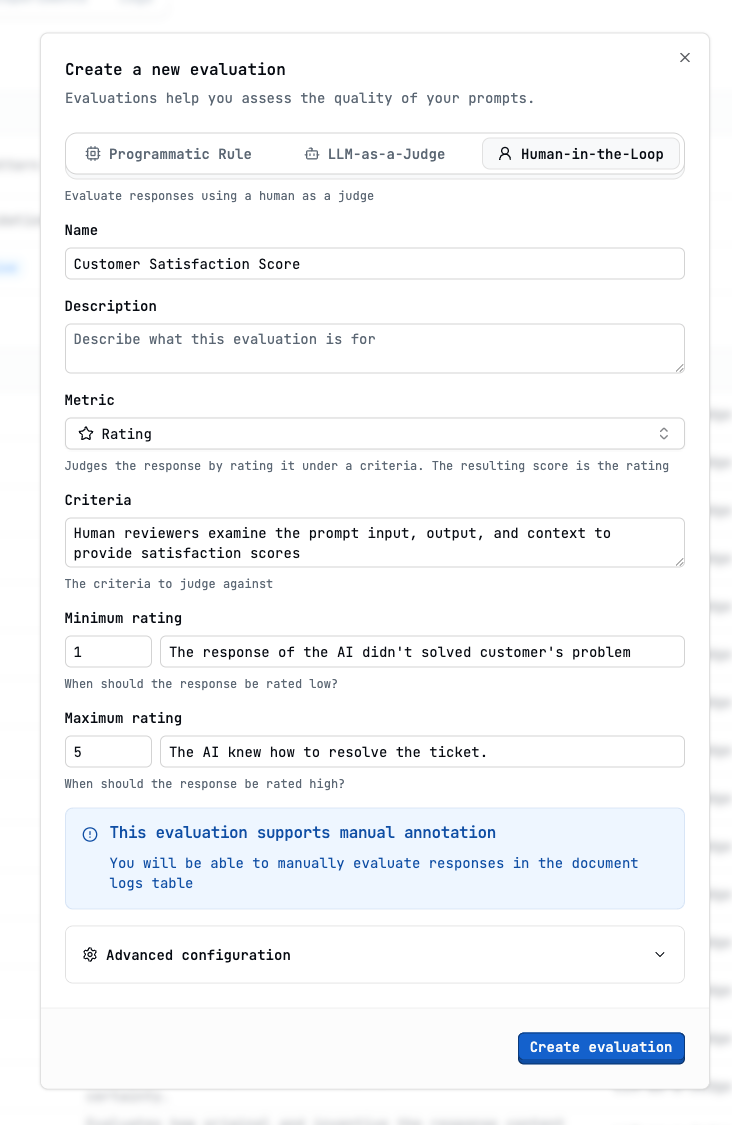 The first way to enable human evaluators to review responses is to give them access to Latitude's logs.
When they click on the logs in the right panel, now that we've configured the HITL evaluation, they will be able to assign a score from 1 to 5 as previously configured.
The first way to enable human evaluators to review responses is to give them access to Latitude's logs.
When they click on the logs in the right panel, now that we've configured the HITL evaluation, they will be able to assign a score from 1 to 5 as previously configured.
 Another way to add manual evaluations is to use the Latitude SDK. You
can see an example of [how to do it here](/examples/sdk/annotate-log).
One thing we didn't do when configuring the evaluation is to set a minimum score required to pass. Let's do it now: Go to the manual evaluation detail at the top right of the screen and click **Settings**.
Another way to add manual evaluations is to use the Latitude SDK. You
can see an example of [how to do it here](/examples/sdk/annotate-log).
One thing we didn't do when configuring the evaluation is to set a minimum score required to pass. Let's do it now: Go to the manual evaluation detail at the top right of the screen and click **Settings**.
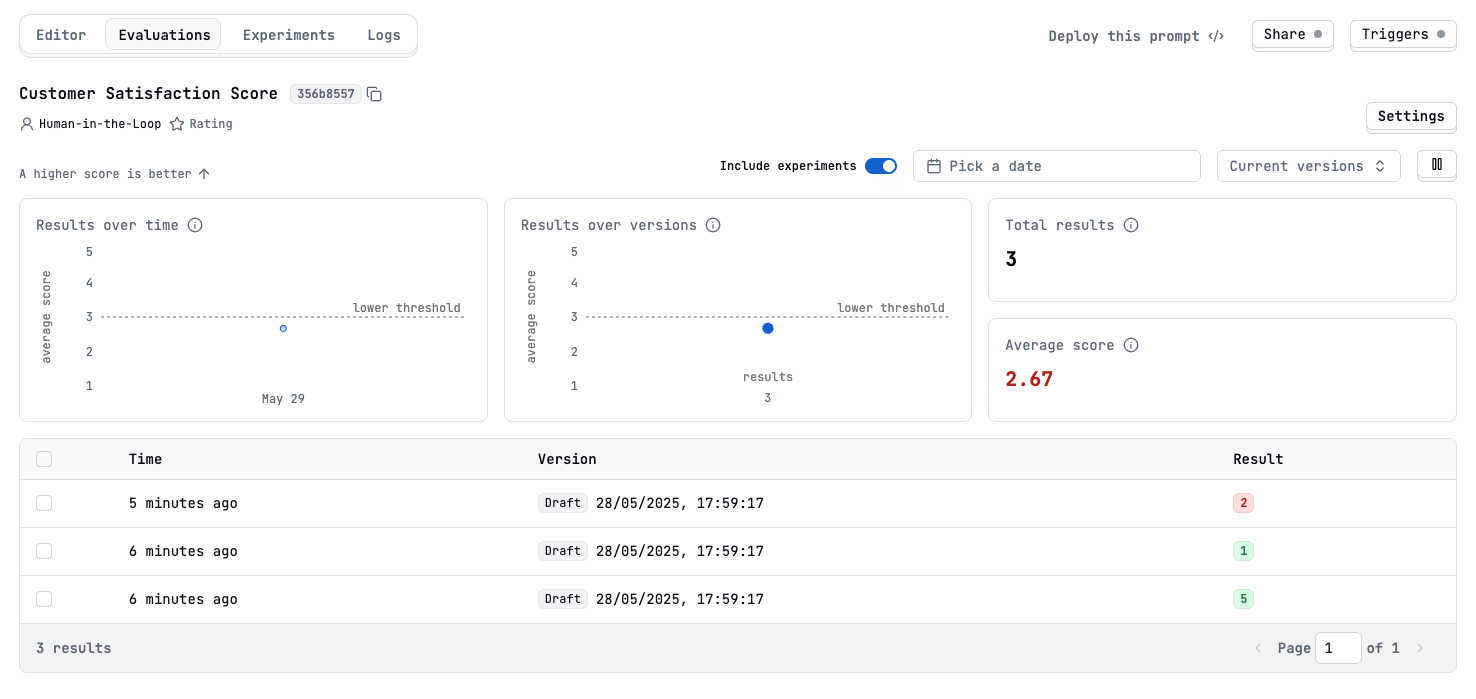
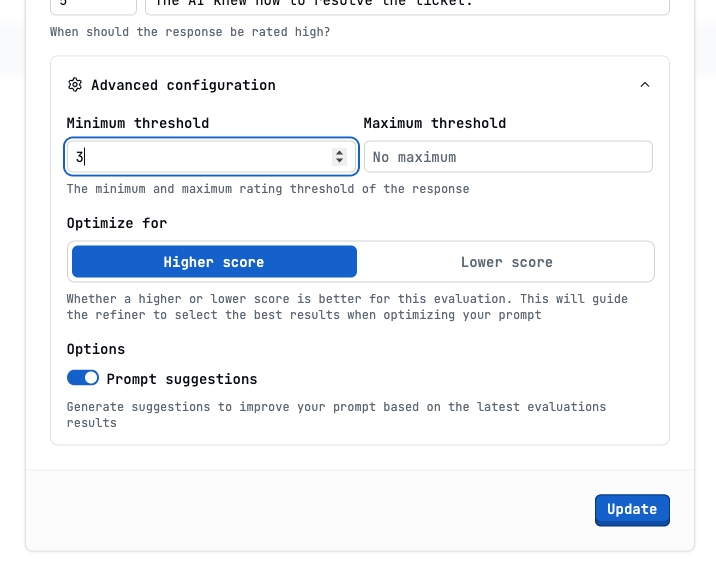 Now our human evaluator has scored the responses and we can see the results in the experiment.
In the image, we see an evaluation with score `1` but in green. This was before we set the minimum score to `3`. The next one didn't pass and is shown in red.
Now our human evaluator has scored the responses and we can see the results in the experiment.
In the image, we see an evaluation with score `1` but in green. This was before we set the minimum score to `3`. The next one didn't pass and is shown in red.
 ## Live Mode
We've done a lot of work so far. We set up four types of evaluations but only tested against synthetic data. Now we want to test our evaluations against real customer interactions—this is what we call **Live Mode**.
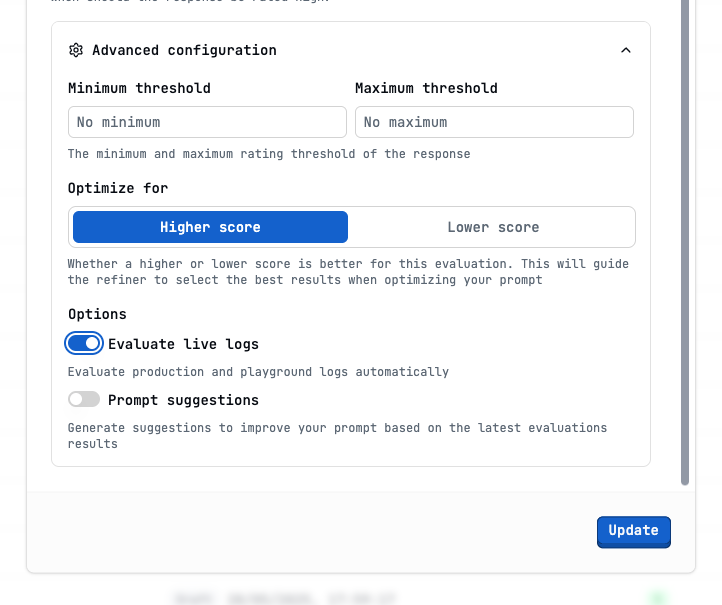
Let's set the **Helpfulness Assessment** evaluation to live mode. Go to the evaluation's detail, click the top right corner **Settings**, and at the bottom under **Advanced configuration**, you can see the **Evaluate live logs** toggle.
## Live Mode
We've done a lot of work so far. We set up four types of evaluations but only tested against synthetic data. Now we want to test our evaluations against real customer interactions—this is what we call **Live Mode**.
Let's set the **Helpfulness Assessment** evaluation to live mode. Go to the evaluation's detail, click the top right corner **Settings**, and at the bottom under **Advanced configuration**, you can see the **Evaluate live logs** toggle.
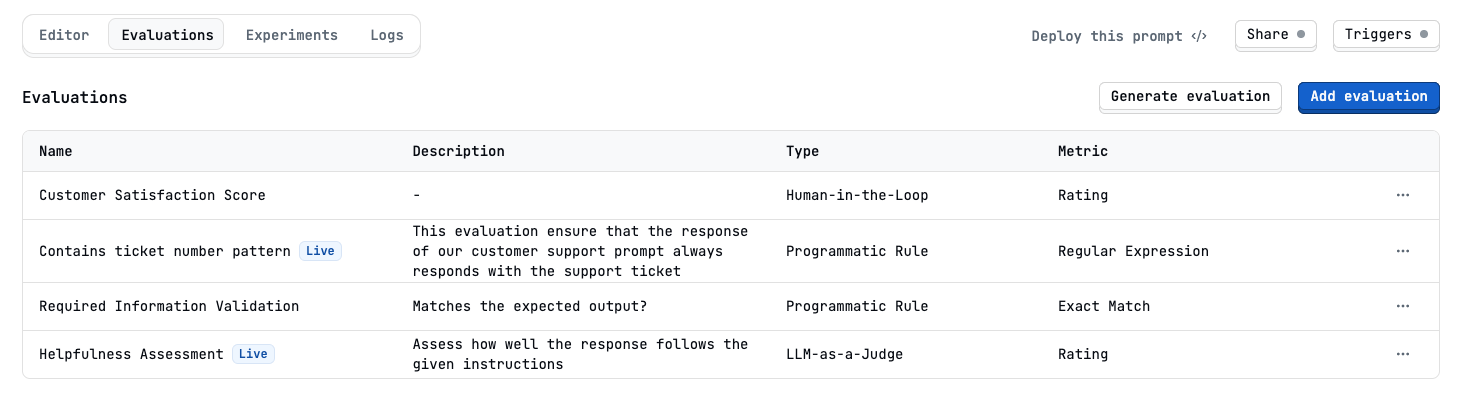
 We did the same for the **Contains Ticket Number** programmatic rule evaluation.
**Manual** evaluations can't be set to live mode because human evaluators review the responses manually after the AI responds to the customer. The **Required Information Validation** evaluation is also not suitable because it requires an expected output to match against the AI response.
We did the same for the **Contains Ticket Number** programmatic rule evaluation.
**Manual** evaluations can't be set to live mode because human evaluators review the responses manually after the AI responds to the customer. The **Required Information Validation** evaluation is also not suitable because it requires an expected output to match against the AI response.
 ## Conclusion
By setting up a robust evaluation framework for customer support responses, we've learned how different types of automated and manual evaluations work together to ensure high-quality service. Automated LLM-based ratings help us assess response helpfulness at scale, while programmatic rules—like exact match and regular expressions—ensure critical information such as ticket numbers and required statements are always included. Human-in-the-loop (manual) evaluations provide the nuanced judgment that only real people can offer, especially for customer satisfaction and tone. Testing our system with both synthetic and real data (live mode) gives us confidence that our evaluations are both reliable and effective. Ultimately, these evaluations help us catch issues early, improve our AI prompts, and consistently deliver accurate and customer-friendly support—leading to better customer satisfaction and operational excellence.
## Resources
* [LLM-as-Judge Evaluation](/guides/evaluations/llm-as-judges) — How to use LLMs to evaluate responses
* [Programmatic Rule Evaluation](/guides/evaluations/programmatic-rules) — How to use programmatic rules to evaluate responses
* [Human-in-the-Loop Evaluation](/guides/evaluations/humans-in-the-loop) — How to use human evaluators to evaluate responses
* [Running Evaluations](/guides/evaluations/running-evaluations) — How to run evaluations against synthetic and live data
* [Datasets](/guides/datasets/overview) — How to create datasets for evaluations
## Conclusion
By setting up a robust evaluation framework for customer support responses, we've learned how different types of automated and manual evaluations work together to ensure high-quality service. Automated LLM-based ratings help us assess response helpfulness at scale, while programmatic rules—like exact match and regular expressions—ensure critical information such as ticket numbers and required statements are always included. Human-in-the-loop (manual) evaluations provide the nuanced judgment that only real people can offer, especially for customer satisfaction and tone. Testing our system with both synthetic and real data (live mode) gives us confidence that our evaluations are both reliable and effective. Ultimately, these evaluations help us catch issues early, improve our AI prompts, and consistently deliver accurate and customer-friendly support—leading to better customer satisfaction and operational excellence.
## Resources
* [LLM-as-Judge Evaluation](/guides/evaluations/llm-as-judges) — How to use LLMs to evaluate responses
* [Programmatic Rule Evaluation](/guides/evaluations/programmatic-rules) — How to use programmatic rules to evaluate responses
* [Human-in-the-Loop Evaluation](/guides/evaluations/humans-in-the-loop) — How to use human evaluators to evaluate responses
* [Running Evaluations](/guides/evaluations/running-evaluations) — How to run evaluations against synthetic and live data
* [Datasets](/guides/datasets/overview) — How to create datasets for evaluations